The direct answer
Learning how to back up your thesis so you never lose it comes down to three copies: the working copy on your laptop, a second copy on an external drive, and an off-site copy in a cloud folder. Back up every day you write, and test that a copy opens once a week.
A thesis is months of work in a small number of files. One failed laptop, one stolen bag, or one wrong click can take all of it. The loss is almost never bad luck: it is a routine never set up, or a backup never tested. This article gives you the routine.
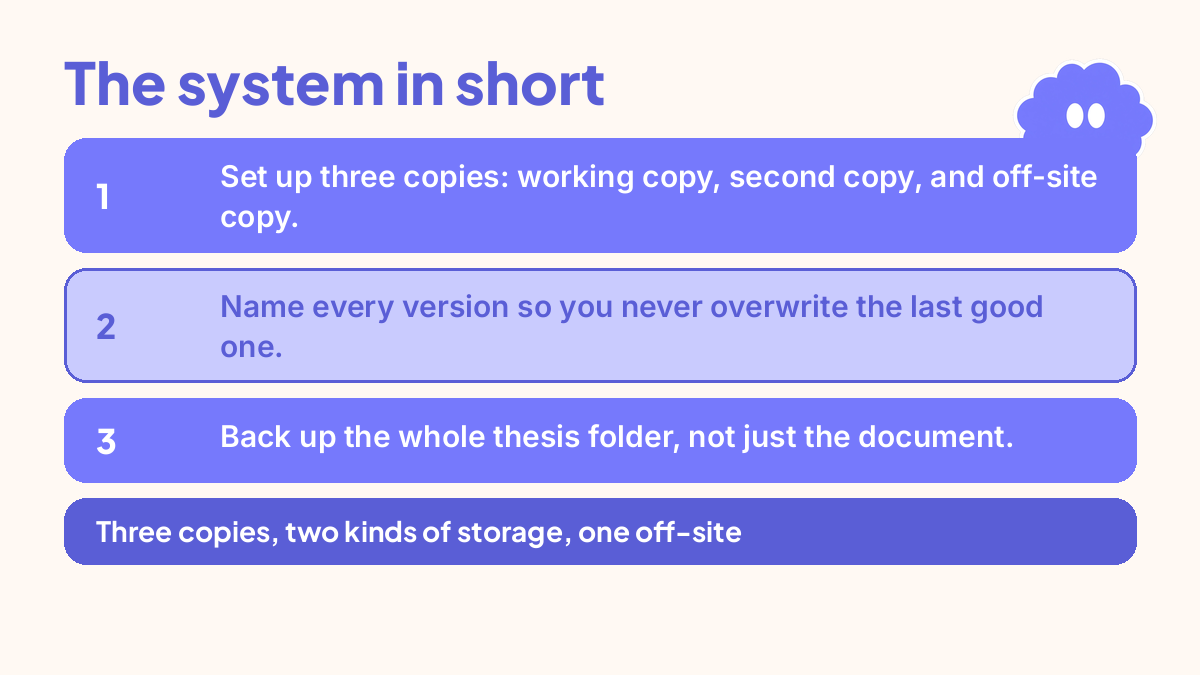
The system in short
- Set up three copies: working copy, second copy, and off-site copy.
- Name every version so you never overwrite the last good one.
- Back up the whole thesis folder, not just the document.
- Make the second and off-site copies automatic.
- Test a restore once a week, in ten minutes.
- Keep a one-page backup log and a plan for the day a laptop dies.
Step 1: Set up three copies on two kinds of storage
The rule has a name: 3-2-1. Keep three copies, on two kinds of storage, with one copy off-site. One copy off-site means a fire, a flood, or a theft at home cannot take all three at once.
For most students, the three copies look like this. Copy one is the working copy on your laptop. Copy two is a second copy on an external drive or a second device, updated at least once a week. Copy three is the off-site copy in a cloud folder or your university storage.
Set this up on the day you start writing, not the week before submission. It takes one afternoon: pick the folders, plug in the drive, sign in to the cloud folder, and copy the thesis folder into both. Write down where each copy lives. Do not count two copies on the same laptop as two backups: a second folder on the same hard drive dies with the drive. Do not count a USB stick on its own either: sticks are easy to lose and fail without warning. If you already have a folder structure, build the backups around it: see how to organise your thesis research data.
Step 2: Name every version so you never overwrite the last good one
A backup is useless if it holds the wrong version. The most common way students lose work is not a dead laptop. It is saving over the good file with a broken one, then copying the broken file into every backup before noticing.
Use one pattern for every file: date, chapter, what it is, and a version number. For example, 2026-11-24-chapter-3-methods-v04.docx. The date sorts the files, and the version number tells you which copy is newest. When you make a big change, save it as the next version number instead of overwriting the last one. Keep the last two versions of each chapter.
Never use names like thesis-final, thesis-final-2, or thesis-really-final. They lie: every version feels final on the day you save it, and a month later you cannot tell which final was real. A date and a version number never lie. At the end of each writing day, save the day’s work as a new dated version and copy it to the second copy. That takes two minutes. When a chapter goes to your supervisor, note the version number in your email. The routine for handling that feedback is in How to handle supervisor feedback on a thesis.
Step 3: Back up the whole thesis folder, not just the document
The document is not the thesis. A thesis is a folder: chapters, data, the reference library, figures, recordings, ethics forms, and notes. Back up the whole folder, every time, or you will save the chapters and lose everything that supports them.
Start with the data. Your cleaned data files, your analysis outputs, and your raw data all live in the thesis folder, and they take far longer to rebuild than a chapter. Next, your references. A reference manager stores its data in its own database, not in your document, so check where that database lives and make sure your backup includes it. Losing the library means rebuilding every citation by hand.
Then the figures and the fieldwork. Figures, tables, and scans belong in the folder with the chapters that use them. Interview recordings and transcripts are research data too, so they belong in the same backed-up folder, under the access rules your ethics approval sets. Keep a short list of everything the folder must hold, and check the backup against it each week. If you keep a research diary, it belongs in the folder as well: see how to keep a research diary for your thesis.
Step 4: Make the second and off-site copies automatic
A routine that depends on remembering will fail on the busiest week of the term. Make the copies automatic, so they happen whether you remember or not.
Set the cloud folder to sync the thesis folder continuously. Every time you save, the new version uploads within minutes. Check once that the sync is actually running: open the cloud folder on another device and confirm the newest version is there. A sync that stopped months ago, because you ran out of space or changed a password, is the most common silent failure.
Set the second copy on a fixed day. Every Friday, plug in the external drive and copy the thesis folder onto it. Put a weekly reminder in your calendar for Friday at 4pm: it happens even when the week was busy. Add one manual habit: email the newest version of the chapter you are working on to yourself at the end of each writing day. Before every deadline and before any big edit, make a fresh copy to all three places. That takes five minutes. Rebuilding a chapter takes weeks.
Step 5: Test a restore once a week, in ten minutes
A backup you have never tested is only a hope. Drives fail silently, cloud folders stop syncing, and files corrupt without warning.
Every Friday, after the second copy is made, open the off-site copy on another device. Open the newest chapter file and check three things: does it open at all, is it the newest version, and are the figures there. If any one fails, fix the routine that day.
Test the second copy too, once a month. Plug in the external drive, open a chapter and a data file from it, and check that they open and that the dates are current. If the drive makes a strange noise, replace it before it fails. Write the result of each test in your backup log: date, which copies you opened, and whether they passed. If a copy ever fails the test, the log tells you when it last passed. If your references are part of the test, open the library as well. The routine for keeping it in order is in how to manage references for a thesis.
Step 6: Keep a one-page backup log and a plan for the day a laptop dies
Write down on one page where each copy lives, how often each updates, the version-naming pattern, and the Friday test. Keep that page in the thesis folder. If your laptop dies the week before submission, that page is what lets you, or someone helping you, find your work without guessing.
The page should also hold the laptop-dies plan. Stay calm, do not try to repair the laptop yourself, and do not pay anyone to recover the drive until you have checked the other copies. Borrow another computer and open the off-site copy. Tell your supervisor the same day, then carry on writing from the off-site copy.
If the laptop was stolen, change the passwords for your cloud folder and your email the same day, and report the theft to your university if the laptop held participant data. If the laptop died with unsaved work, accept the loss of that session and rebuild from the last saved version. The plan exists so that the worst day of your thesis costs you an afternoon, not a chapter. The conclusion chapter is the last thing to back up: see How to write a thesis conclusion for how to finish it, then back it up the same day.
A worked example: a thesis due in eight weeks
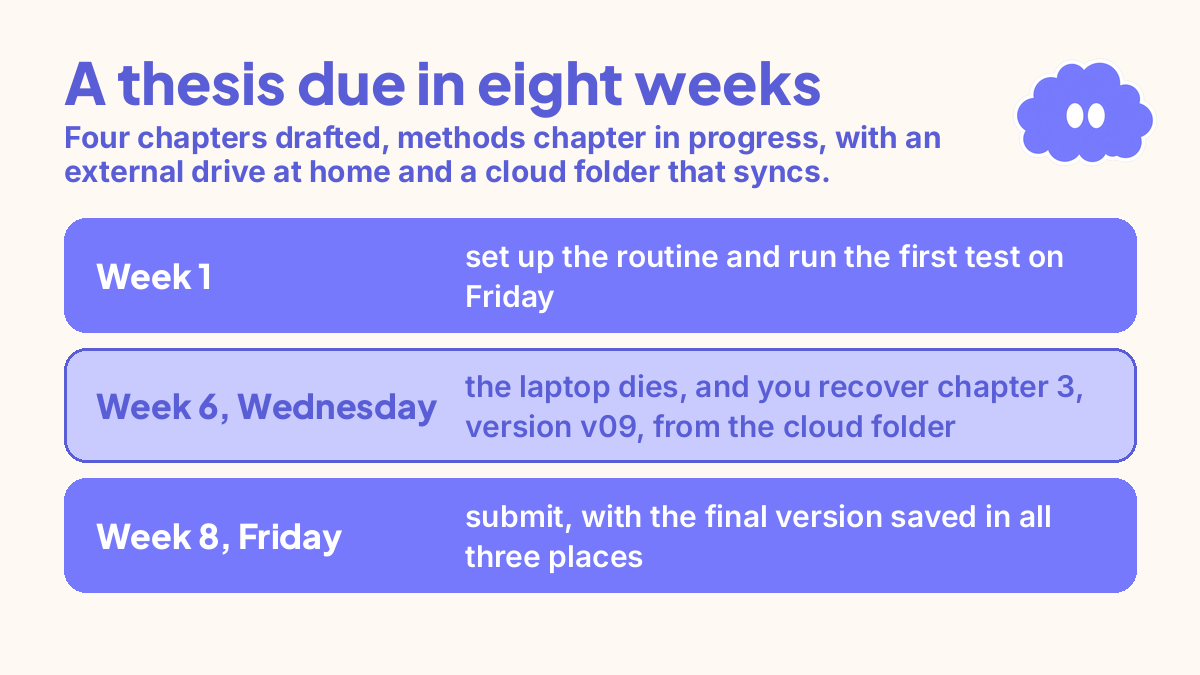
Your situation: Master’s student, thesis due in eight weeks. Four chapters drafted, methods chapter in progress. You write on a laptop, with an external drive at home and a cloud folder that syncs. Friday is your backup day.
- Week 1, Monday: set up the routine: copy the thesis folder to the external drive, check the cloud folder holds the newest version, and write the one-page backup log.
- Week 1, Friday: first test: open the cloud copy on your phone. The methods chapter opens, version 2026-11-24-chapter-3-methods-v04, and the external drive copy matches. Log both as passed.
- Weeks 2 to 5: write daily, save each day as a new dated version, and let the cloud folder sync. Every Friday at 4pm, copy the folder to the drive and test the cloud copy. One Friday the sync had paused: restart it and test again before the weekend.
- Week 6, Wednesday: the laptop dies. It will not start. Do not pay for recovery yet. Borrow a library computer, open the cloud folder, and check the newest version: chapter 3, version v09, saved on Tuesday evening. Tell your supervisor that day.
- Week 6, Thursday: carry on writing from the cloud copy. Buy a new external drive, copy the folder onto it, and confirm the cloud folder is still syncing. The routine is rebuilt in one afternoon.
- Week 8, Friday: submit: the final version is saved in all three places, with the version number in your submission email. The lost laptop cost one afternoon.
When it goes wrong
The laptop died and there was only one copy. Do not try to repair it yourself. Take it to your university IT helpdesk and ask what recovery is possible, and tell your supervisor the same day. Check every other place the file might live: email, the cloud folder, a USB stick. If nothing turns up, rebuild from your notes and drafts, and set up the three-copy routine before you write another word.
The cloud copy overwrote the good file with a bad one. Cloud folders sync mistakes as fast as they sync good work. Open the version history and restore the last good version. From then on, keep dated versions instead of overwriting one file, so a bad save can never erase the good one.
The USB stick was your only second copy, and it is lost. Check your email for a chapter you sent yourself, and the cloud folder. If nothing turns up, the working copy is now your only copy, so set up the three-copy routine today. A USB stick is for moving files, never for storing the only backup.
The reference library was never backed up. Check whether your reference manager keeps a copy in the cloud. If the library is gone, rebuild it from the reference list in your newest chapter and from your reading notes. It is slow work, and it is the reason the weekly test opens the library too. If you are already behind, the system for catching up is in how to finish a thesis when you are behind.
Weekly review checklist
- Did I back up the working copy every day I wrote this week?
- Are all three copies in place, and is the off-site copy no more than a day behind?
- Did the Friday test pass: did the newest version open on another device?
- Is every file named with a date and a version number, with no final-final names?
- Does the backup hold the whole folder: chapters, data, references, and figures?
- What is the one change I will make next week?
Downloadable infographic spec: one vertical image, title “How to back up your thesis so you never lose it”, with the six steps from “The system in short” and the six review questions above, in Thynq cream, Cloud Purple, Dark Purple and pink, with the Cloud mascot. Text taken word-for-word from this article.
What this system is not
This system is not a promise that nothing will ever break. Laptops die, drives fail, and cloud accounts get locked. The system does not stop those things. It makes sure that when one happens, you still have your work in two other places, and you lose an afternoon instead of a chapter.
It is not a substitute for your university’s rules on sensitive data. If your ethics approval says participant data must stay on university-managed storage, follow that, even if a cloud folder would be easier. A convenient backup that breaks your ethics approval is not a backup.
It is not complicated software or a paid service. Three copies, clear names, the whole folder, and a weekly test are enough. The test is the system. Everything else is habit.
Sources
- Memorial University of Newfoundland, Faculty of Engineering and Applied Science. Student backup method: the 3-2-1 backup method. Three copies, two kinds of storage, one copy off-site; back up daily for active research.
- Oakland University Libraries. Research data support: storing and backing up your data. The 3-2-1 rule, testing backups, and using USB drives only for transfer, not storage.
For the full system behind this method, start with how to build a study system that fits your life and how to edit and proofread a thesis for the final pass before submission.
Questions
How often should I back up my thesis?
Back up the working copy every day you write, and check all three copies once a week. Always back up before a deadline, before you send a chapter, and before any big edit.
What is the 3-2-1 backup rule for a thesis?
Keep three copies of your thesis, on two different kinds of storage, with one copy off-site. For most students that means the working copy on the laptop, a second copy on an external drive or a second device, and an off-site copy in a cloud folder. If one copy is lost or damaged, the other two still hold your work.
Where should I store my thesis backup?
Keep the working copy on your laptop, the second copy on an external drive or a second device, and the off-site copy in a cloud folder or your university storage. Keep sensitive data where your ethics approval allows it, and encrypt any external drive that holds participant data. A USB stick on its own is not a backup: it is easy to lose and it fails without warning.
How do I know my thesis backup actually works?
Test it once a week. Open the off-site copy on another device and check that the newest version opens and that the date matches your last writing day. A backup you have never tested is only a hope. If a file will not open, fix the routine that day.